Free Google Review QR Code Generator
Send happy customers straight to the box where they leave a Google review, instead of asking them to search for you. Copy your review link from your Google Business Profile, paste it here, and print the code on counter cards, receipts and packaging.
In your Google Business Profile, choose “Ask for reviews” and copy the link it gives you.
Added under the code in the PNG and SVG, clear of the blank border phones need. Say what the scan does.
Sample code. Yours appears here as you type.
Add Your Google review link to create your code.
This code is static. Here is what that means.
Everything on this page is encoded directly into the pattern, so the code works forever and needs no account. The trade-off is that it cannot change and cannot be counted.
Static code (this tool)
- Free forever, no account needed
- Works offline, never expires
- Destination is fixed once printed
- No way to count scans
Dynamic code (Qrelux)
- Count the scans from each branch, counter card or receipt
- Change the destination after printing
- See when, where and how often it is scanned
- Fix a typo without a reprint
- Compare which poster or flyer actually works
LAskill Printing saw 3× more customer engagement from the same banners and flyers.
What a dynamic code shows you
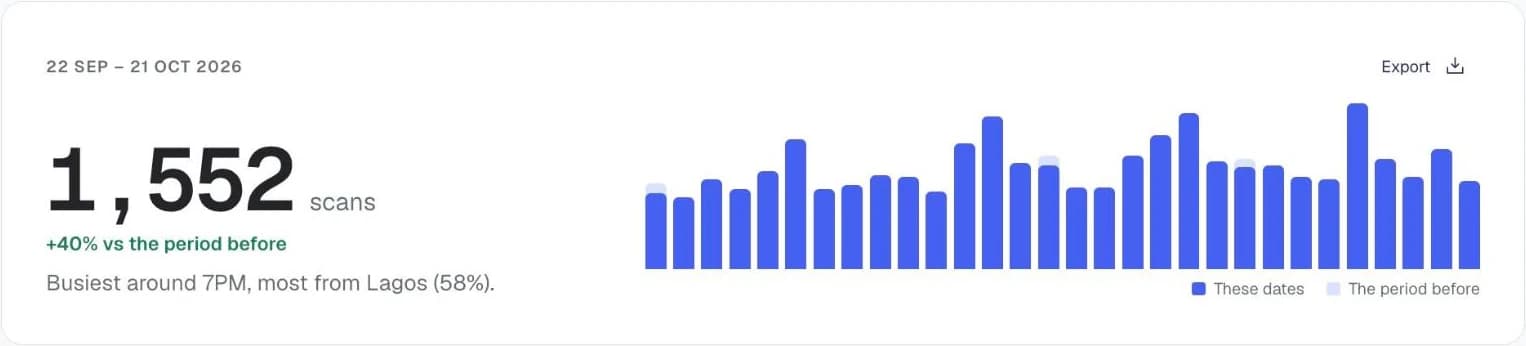
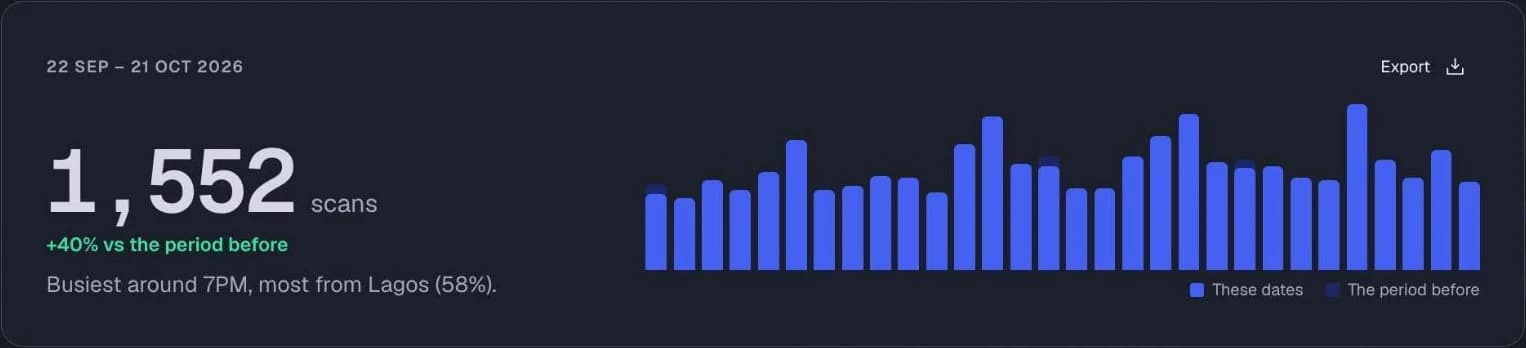
Charts from the Qrelux demo, on sample data.
How to make a Google review QR code
- 1
Open your Google Business Profile
Search for your business name on Google while signed in, or open the Google Business Profile app.
- 2
Copy your review link
Choose “Ask for reviews” and copy the link it gives you.
- 3
Paste it and check
Scan the preview and confirm it opens the review box, not just your listing.
- 4
Print it where customers are happiest
On the counter, the receipt or the delivery bag, right after a good experience.
Before you print your Google review QR code
- Give a reason next to the code: “Enjoyed your visit? Scan to review us on Google”.
- Print it at least 3cm wide on counter cards, so people can scan from where they stand.
- Place it where customers wait, like the till or the pickup point, not by the exit.
Google review QR code not working?
- It opens your listing, not the review box
- You copied the Maps share link. Use the link from “Ask for reviews” in your Business Profile instead.
- Customers are asked to sign in
- Google requires a Google account to leave a review. Most Android users are already signed in.
- The link says it's not found
- Your Business Profile may not be verified yet. Finish verification in Google, then copy the review link again.
Where to use a Google review QR code
Counter and till cards
Ask for a review while the customer is still smiling at the counter.
Receipts and invoices
Print the code at the bottom, so every sale is a chance at a review.
Delivery packaging
Catch customers when the order arrives, which is when they're most likely to leave a review.
Using it for your business? See how Qrelux works for restaurants and marketing teams.
Google review QR code: common questions
Am I allowed to ask for Google reviews with a QR code?
Yes, asking is fine. Google's rules forbid offering rewards for reviews and only asking customers you expect to be happy, so put the code where everyone can see it.
Can I see how many people scanned it?
Not with a static code. A Qrelux code counts every scan, so you can see which branch, counter card or receipt brings in the most reviews.
Where do I find my review link?
In your Google Business Profile, choose “Ask for reviews”. The short link it gives you opens the review box directly.
Before you print: make it a code you can change and count.
Free plan, no time limit · No credit card